
How to switch on Location History on Google apps for work

I was having trouble switching on location history, or web history, on my Google apps for work account (domain).

I searched and found lots of people that had also struggled, but no solution. Eventually, it was quite straightforward. I hope this might help someone else in the future.

On an Android device, you activate this by going to ‘Settings’ – ‘Google’ – ‘Personal info & privacy’ – ‘Activity controls’ – ‘Web & app activity’. 

However, I was told that I couldn’t do this based on my organisation’s permissions. As the owner of my account, I hadn’t set this up to be turned off, so I wanted to change it. 

Steps:

1 – Go to admin.google.com and log in as an administrator on your apps for work domain.

2 – Go to Apps – Additional Services. This gives a long list of services, most of which were set to ‘on for everyone’. This included ‘Location history’. However, in the end, there was one that was set to ‘off’:’Web history’. Change this to ‘on for everyone’ (or ‘some users’, as you wish). You will now be able to change the setting on your device. Google say it can take up to 24 hours to feed through, but mine worked immediately. 

3 – Now, if the above worked, you won’t need this step. For me, I didn’t see the ‘Web history’ setting immediately. At first, Google support told me to set ‘Location history’ to on and wait for 24 hours. I did this, but still couldn’t change the setting on my device. Upon returning to the apps for work admin section 24 hours later, at the bottom of the list of ‘Additional services’ was ‘Web history’, set to ‘off’. I now turned it on, and everything worked! 

So, either, the setting was there all along and I just didn’t see it (possible…), or forcing the ‘Location history’ setting made it appear for some reason (seems unlikely, but can’t be sure). 

Either way, if you’re reading this, hopefully it helps you! 
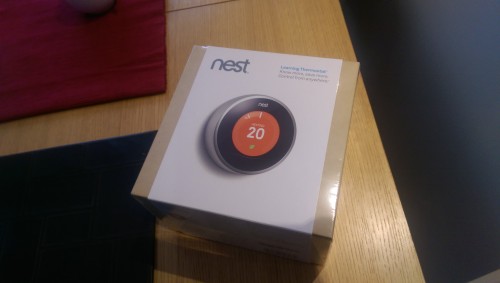
Installing Nest – the learning thermostat

Nest

Nest – the ‘learning thermostat’

I had put it off for quite some time, but I have finally installed Nest, Google’s ‘learning thermostat’.

The thermostat itself is still in its ‘learning’ phase, so I’ve not yet seen the benefit of its ‘auto away’ mode or dynamic scheduling. I’m looking forward to seeing how it adapts to changes in routine and the outside temperature.

I bought Nest direct from Google, through the Play Store. There was a slight hiccup with installation – which seems a little too frequent based on reading other people’s experiences. It’s a sub-contracted system in the UK, but communication doesn’t seem to be fool proof. Despite receiving an email confirming the date and time of my installation, the company assigned the job failed to turn up on the day, claiming they knew nothing about it. I was, however, able to reschedule for the following day.

First impressions of the Nest thermostat itself are very positive. The engineer installed it in about an hour, first connecting up the heat link to my boiler and then replacing my old thermostat with the Nest unit.

The Nest thermostat connected to my home network and the Nest app without any issues. Nest feels solid to touch and is straightforward to control. The basics are all there. I’ll see how it performs over the coming weeks and months.

On to the secondary consideration of purchasing Nest… With so much promising home automation technology heading to market (you’ve no doubt heard of the ‘internet of things’!), Nest feels like one of the strongest bets when it comes to centralising and controlling it all from a single location.

Google’s ‘Works with Nest’ programme already includes Dropcam, Phillips and Mercedes and is only going to grow. I already have separate apps to control home alarm and CCTV systems. I’ve also been looking at Piper recently. However, as much as I love all of these systems, I want my life to get simpler, not more fragmented.

It’s a complicated picture, but Nest and Apple TV look well set to lead the way in managing home automation over the coming months and years. At least, I hope so.